

If your Windows 10 PC has become painfully slow, you’re not alone. Over time, even good machines start lagging — apps load slower, system boots forever, and just opening a browser feels like a task.
Luckily, you don’t need to buy a new laptop or reinstall everything. Below are 5 real-world fixes that I personally tested — no fluff, just things that actually helped.
1. Disable Unnecessary Startup Programs
The more programs that launch with Windows 11, the slower your system will feel — especially right after booting. Startup apps can seriously bog down your laptop or PC, even if you have decent hardware. Luckily, you can speed things up in just a few seconds.
How to check and disable them:
- Press Ctrl + Alt + Delete and select “Task Manager” from the list.
- Then choose “Startup apps” (or go to the “Startup” tab in Task Manager).
- Right-click and disable anything you don’t need — like Adobe Updater, Spotify, Discord, OneDrive (if you don’t use it), and so on.
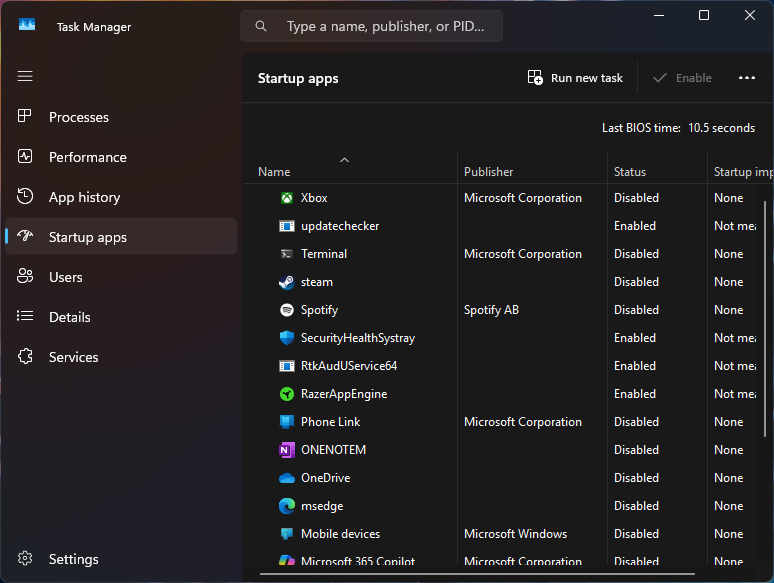
Tip: Keep essential tools like antivirus running, but disable background apps you rarely use. They just take up RAM and slow down boot time.
The result? Your system could boot up 30–50% faster, and feel snappier right after login.
2. Clean Up Temporary and Junk Files
Windows collects a lot of digital trash: logs, temp files, leftovers from updates. It slows down disk performance, especially on HDDs.
Quick cleanup:
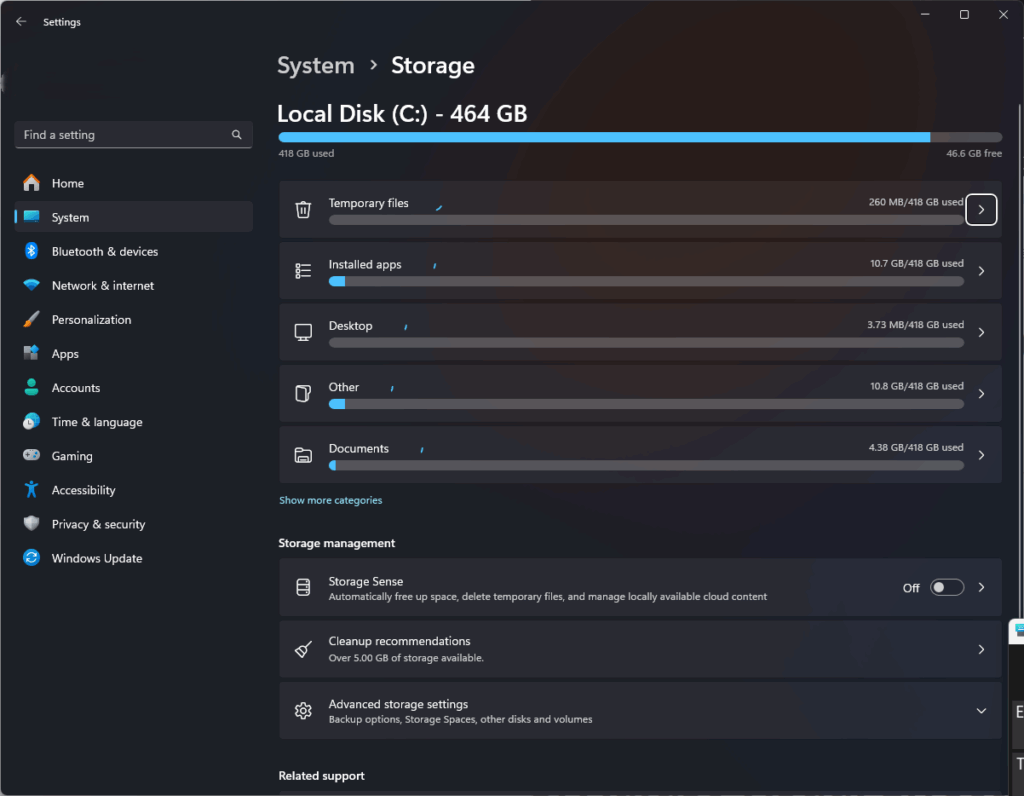
- Open Settings > System > Storage.
- Click on Temporary files and remove unnecessary ones.
- You can also use Disk Cleanup (search in Start).
🧼 Bonus: Use a tool like BleachBit or CCleaner (carefully!) to go deeper.
3. Adjust Visual Effects for Better Performance
Windows 10 has fancy animations and shadows that look nice but eat resources.
To tone them down:
- Press Win + R, type
sysdm.cpl, and hit Enter. - Go to the Advanced tab > Performance > Settings.
- Choose “Adjust for best performance” or manually uncheck animations.
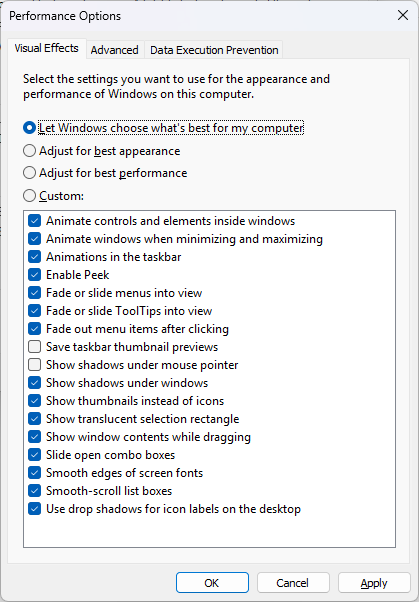
This makes a huge difference on older or low-end laptops.
4. Uninstall Unused Programs
That game you installed 2 years ago and never touched? It’s probably running a background service or just hogging space.
- Go to Settings > Apps > Installed apps.
- Remove any software you don’t use or even recognize.
- Be cautious not to remove drivers or Windows components.
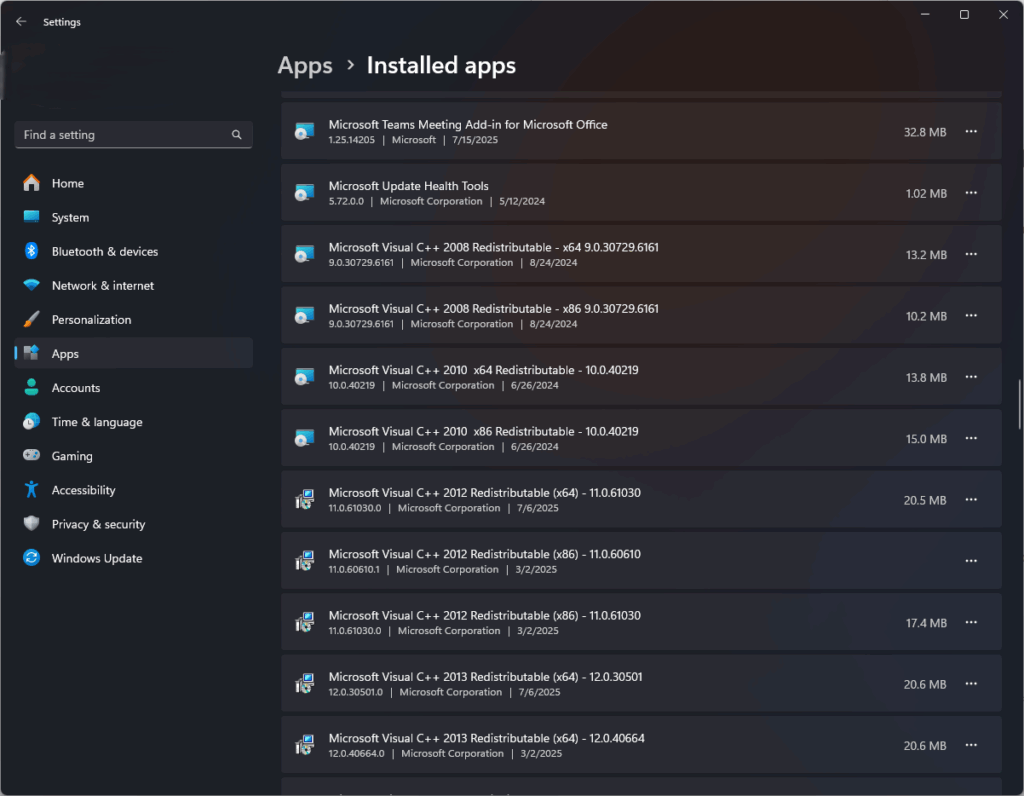
🗑️ Less clutter = faster indexing, fewer background tasks.
5. Scan for Malware or Resource Hogs
Sometimes slowness isn’t your fault — hidden software, malware, or heavy background processes might be the problem.
What to do:
- Run a full scan with Windows Security or use Malwarebytes.
- In Task Manager, look for processes using high CPU, memory, or disk — right-click > End Task if suspicious.
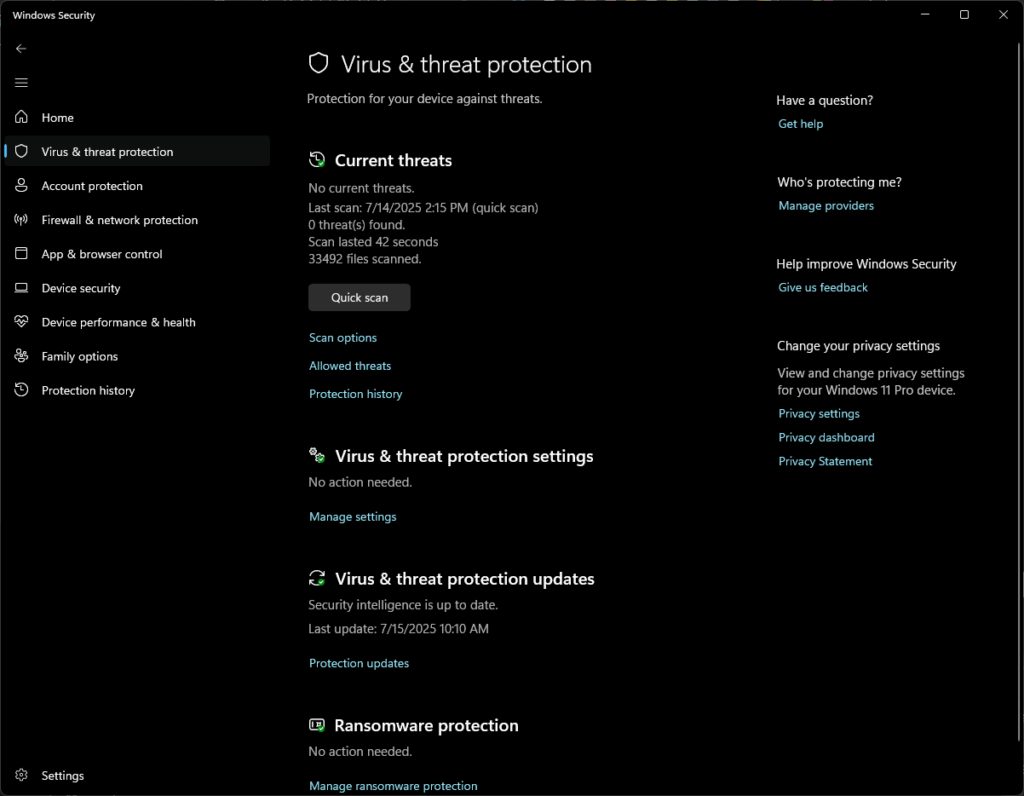
Watch out for unknown .exe processes or browser extensions that auto-launch.
Windows 11? Upgrade to SSD or RAM
If you’re still using an HDD — it’s time to upgrade. Moving Windows 11 to an SSD is one of the fastest and most effective ways to breathe new life into your PC or laptop.
Got 4 or 6 GB of RAM? In 2025, that’s not enough. For smooth multitasking and everyday work, 8 GB is the bare minimum. The good news? RAM is relatively cheap now — a used 4GB stick can cost as little as $5–10.
FAQ – How to Speed Up a Slow Windows 11 PC
Slow startup can be caused by too many programs launching at startup, background apps, or temporary junk files. Disabling unnecessary startup apps and cleaning temporary files can make your system boot faster.
You can improve performance by disabling startup programs, cleaning temporary files, adjusting visual effects for performance, uninstalling unused software, and scanning for malware. Upgrading to an SSD or adding more RAM also helps significantly.
Common apps that can be disabled include Spotify, Discord, OneDrive (if unused), Adobe Updater, and other background apps you rarely use. Keep essential programs like antivirus running.
Go to Settings > System > Storage > Temporary files and remove unnecessary files. You can also use Disk Cleanup or tools like BleachBit or CCleaner for deeper cleaning.
Yes. Turning off animations and shadows via System Properties > Advanced > Performance Settings can make Windows 11 faster, especially on older or low-end hardware.
Absolutely. Hidden malware or resource-hogging processes can drastically reduce speed. Running a full scan with Windows Security or Malwarebytes can detect and remove threats.
For basic tasks, 8 GB RAM is the minimum recommended in 2025. 4–6 GB may cause slowdowns during multitasking. Upgrading RAM is a cost-effective way to boost performance.
Yes. Moving Windows 11 from an HDD to an SSD drastically reduces boot times and makes applications load faster, providing one of the biggest performance gains.

0 Comments