

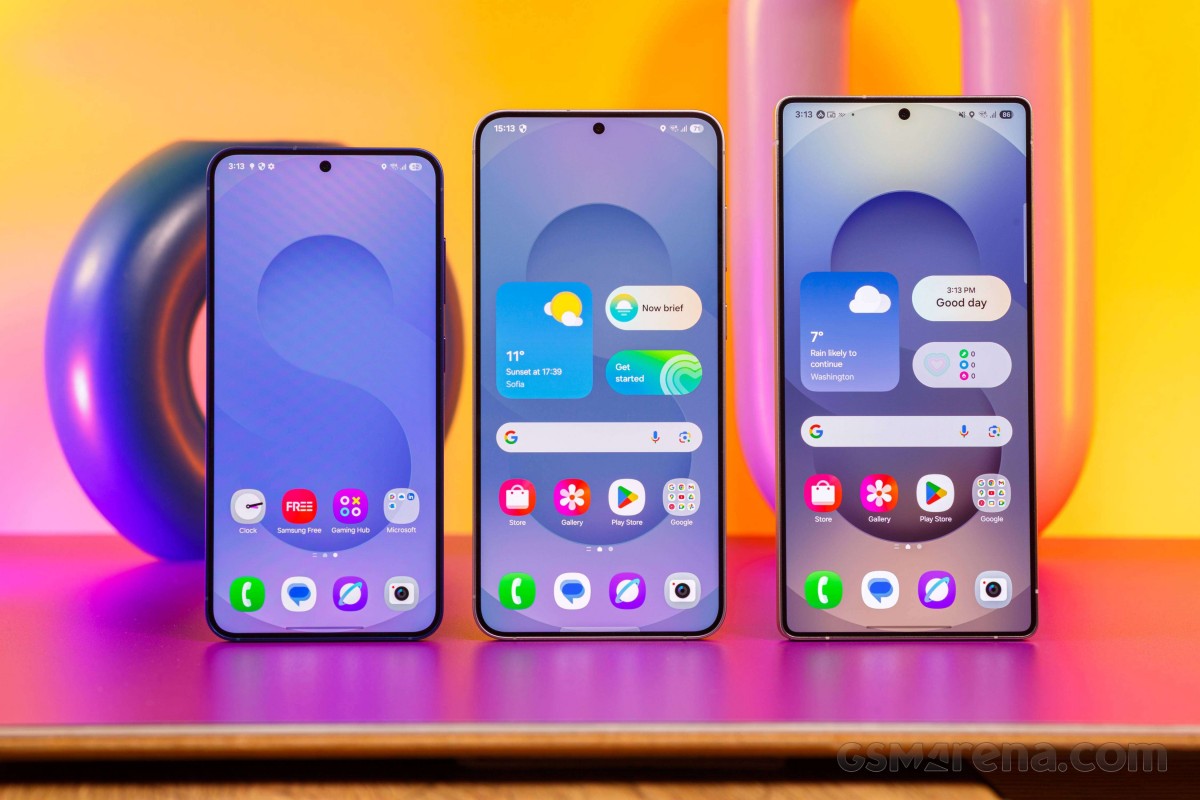
The One UI App Drawer is one of the most essential features on Samsung Galaxy devices. It provides a dedicated space where users can access all their installed apps, keeping the home screen clean and organized. With the release of One UI 7 based on Android 15, Samsung has introduced major updates to the app drawer experience, including a complete visual redesign, improved usability, and more customization options.
In this comprehensive guide, we will cover everything you need to know about the One UI App Drawer in 2025, including how it works, what’s new in One UI 7, how to customize it, compatible Galaxy devices, and advanced tips to make the most of it.
What Is the One UI App Drawer?
The app drawer in Samsung’s One UI interface is a panel that lists all the apps installed on your phone or tablet. Unlike the home screen, which can be customized with app icons and widgets, the app drawer is meant to display every app in an organized, searchable grid or list.
Key characteristics:
- Accessed by swiping up from the bottom of the screen.
- Alphabetical or custom app arrangement.
- Search bar at the top.
- Folder support inside the drawer.
- Optional “Apps button” on the home screen.
This functionality separates Samsung from some competitors like Apple, which does not allow a separate drawer by default.
What’s New in the One UI 7 App Drawer (Android 15)
The release of One UI 7 with Android 15 in 2025 brought significant changes to Samsung’s user interface, particularly to the app drawer.
1. Vertical Scrolling by Default
Samsung has replaced horizontal page swiping with a vertically scrolling app drawer. This change aligns with the behavior seen in Google Pixel and other Android devices, making navigation more intuitive.
2. Enhanced Icon Customization
One UI 7 introduces adaptive icon shapes, new color accents, and more control over icon appearance, including in the app drawer. This is part of Samsung’s new Material You-inspired theme engine.
3. Larger App Folders and Icons
Folders created inside the app drawer are now larger and easier to tap, improving usability especially on foldables and tablets. Icon spacing has also been optimized for different screen sizes.
4. Blurred Background and UI Enhancements
The app drawer now features a blurred transparent background, bringing it closer to the modern design language found across One UI 7. This adds depth and a more premium visual experience.
5. Improved Performance
Samsung has optimized the animations, scroll speed, and responsiveness of the app drawer. Even budget devices see improved performance.
How to Open and Use the App Drawer in One UI
- Swipe up from the home screen.
- Alternatively, enable the Apps button via Home screen settings.
- Use the search bar to locate apps quickly.
- Tap and hold apps to move them to the home screen or create folders.
How to Customize the App Drawer in One UI 7
Layout and Grid Size
Go to Settings > Home Screen > App Screen Grid to adjust how many apps appear per row and column. Options vary by device (4×5, 5×6, 6×6, etc.).
Folder Management
- Drag one app over another to create a folder.
- Rename folders and customize color.
- Folders can now be created directly in the app drawer.
Icon Styles and Themes
- Access via Settings > Wallpaper and Style.
- Choose icon packs and colors that apply across home screen and drawer.
- More advanced tweaks available via Good Lock (Home Up module).
Hide Apps from Drawer
- Go to Home Screen Settings > Hide apps.
- Select apps to hide from both drawer and search.
Compatible Devices with One UI 7 App Drawer Enhancements
Galaxy S Series
- Galaxy S24 / S24+ / S24 Ultra
- Galaxy S23 / S22 / S21 / S21 FE
Galaxy Foldables
- Galaxy Z Fold 6 / 5 / 4 / 3
- Galaxy Z Flip 6 / 5 / 4 / 3
Galaxy Tablets
- Galaxy Tab S10+ / S10 Ultra
- Tab S9 / S8 / S9 FE / A9
Galaxy A and M Series
- Galaxy A55 / A35 / A25 / A15
- Galaxy A73 / A54 / A53 / A33
- Galaxy M54 / M34 / F55 / Quantum 5
These models support the full range of app drawer enhancements in One UI 7.
Pro Tips for Power Users
- Use Good Lock: Install Good Lock and activate the Home Up module for advanced drawer tweaks.
- Quick Access: Pin frequently used apps to the top by creating a drawer folder called “Favorites.”
- Split Screen Shortcuts: Drag apps from the drawer into split screen or pop-up view.
- Minimalist Mode: Hide all apps from the home screen and rely solely on the drawer for navigation.
Final Verdict: Is the One UI App Drawer Better in 2025?
Absolutely. With One UI 7 and Android 15, the Samsung app drawer has become more intuitive, better looking, easier to customize, and faster and smoother. While some changes may take getting used to, the overall experience is a win for both casual and power users. Samsung is finally aligning itself with modern Android design standards while still offering the flexibility and power that One UI is known for, as seen on the latest foldable devices like the Samsung Galaxy Z Fold 7 and Galaxy Z Flip 7.

0 Comments